

If you're starting from zero, the number of decisions involved in creating a nonprofit website can feel overwhelming. What platform? What pages do you need? How do you accept donations? What does it cost?
This guide answers all of those questions honestly, without assuming you have technical experience or a large budget.
Start Here: What Your Website Needs to Do
Before choosing a platform or picking a template, answer these three questions:
1. Who needs to use this website?
Not "everyone": be specific. Donors? Volunteers? Corporate partners? Event attendees? The people you most need to reach should shape every decision that follows.
2. What's the single most important action you need each person to take?
For donors: complete a donation. For volunteers: submit an application. For partners: contact you about a partnership. Each user type has one primary action. Make sure you know what it is.
3. What does your organization have right now?
Content you can use? Photos? A rough outline of your programs? Existing branding? The answer shapes how much work is ahead.
With those answers in hand, you're ready to start making decisions.
Step 1: Register Your Domain
Your domain name (yourorg.org) is the address of your website. It's registered separately from your website itself.
Where to register:
- Namecheap (affordable, good interface)
- Google Domains (simple, reliable)
- Cloudflare Registrar (cost-focused option)
What domain extension to use:
- .org: Traditional for nonprofits, carries a trust signal
- .com: Fine if your .org equivalent isn't available
- .ngo or .charity: Newer options, less recognition but valid
Domain registration typically costs $10: $15/year. If you're a Google for Nonprofits member, you may have credits applicable toward this.
Step 2: Choose Your Platform
This is the biggest decision. Here's the simplified version:
Just getting started, minimal budget: WordPress.com (free tier to start, paid plan when ready) or Wix (free tier available, nonprofit discount on paid)
Want more design quality: Squarespace (50% nonprofit discount, clean templates)
Want the most flexibility long-term: Self-hosted WordPress.org (requires hosting, more setup, but the most capable platform for growth)
Want to avoid managing technical infrastructure: Squarespace or Wix on a paid plan
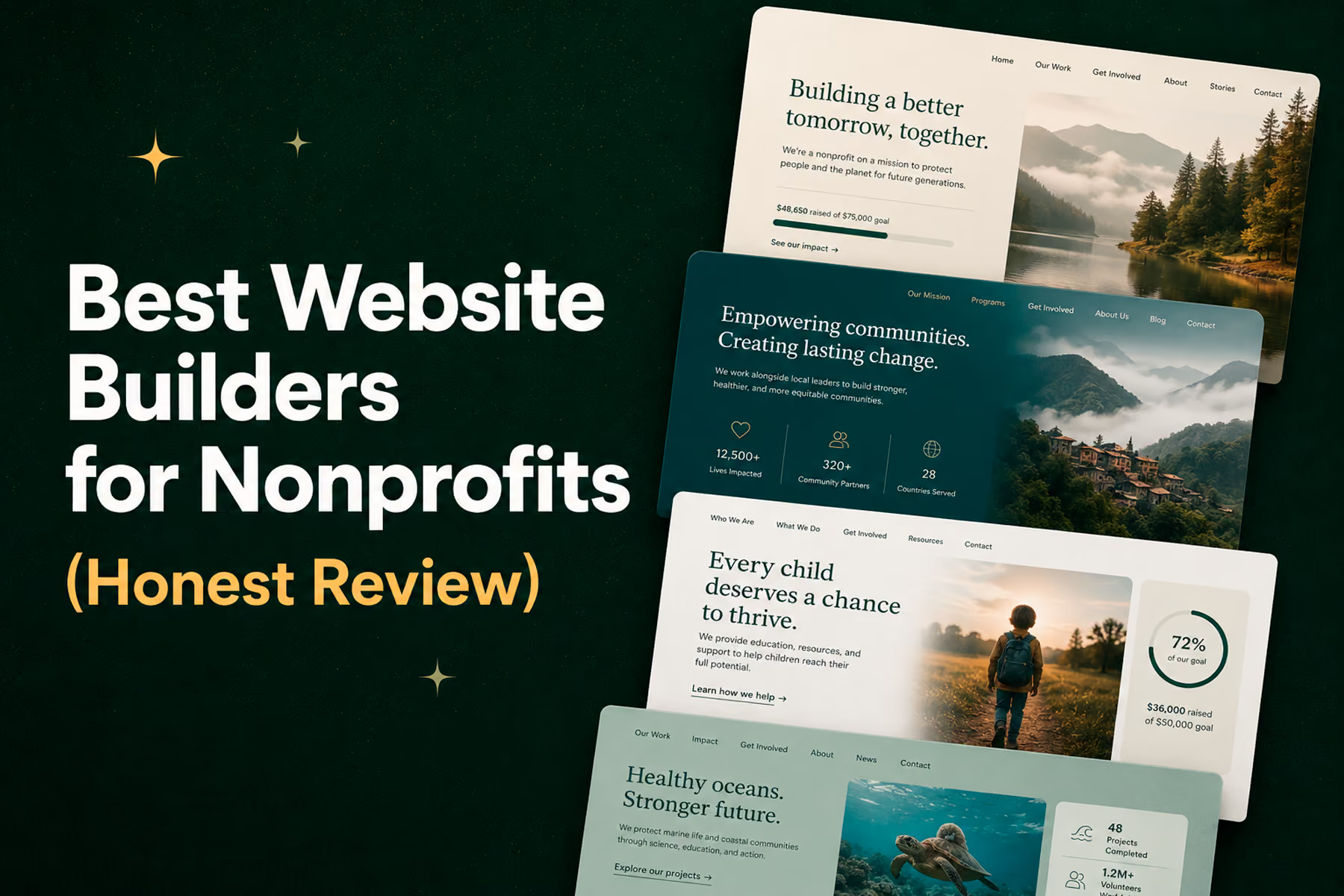
Related: Best Website Builders for Nonprofits in 2026 →
If you're planning to grow and want to avoid a platform migration in two years, start with self-hosted WordPress. The initial setup is more involved, but you'll be on the most flexible, most scalable platform from the start.
Step 3: Set Up Hosting (If Self-Hosted)
If you choose self-hosted WordPress, you need a hosting plan.
Recommended for beginners: SiteGround or Bluehost: affordable, beginner-friendly, with WordPress installation built in.
For organizations with more budget or performance requirements: WP Engine: excellent managed WordPress hosting with a nonprofit discount program.
Cost: $5: $50/month depending on plan and provider.
Step 4: Install Your Website Platform
For Squarespace/Wix: Sign up, choose a template, and follow the setup wizard. These are genuinely self-guided.
For WordPress: Most hosts offer one-click WordPress installation from the hosting control panel. After installing, you'll access your site at yourdomainname.com/wp-admin.
First things to do in a fresh WordPress install:
- Choose a theme (appearance → themes → add new)
- Install an SEO plugin (Rank Math or Yoast)
- Install a security plugin (Wordfence)
- Install a donation plugin (GiveWP for WordPress-native donations, or get embed code from Fundraise Up / Donorbox)
Step 5: Build Your Essential Pages
Every nonprofit website needs these pages at minimum:
Homepage
Your front door. Make it clear in the first 10 seconds: what you do, who it's for, and what you want the visitor to do. A single primary CTA (donate, learn more, get involved) visible without scrolling.
About
Your mission, your team, your history, your values. This is where credibility gets established for first-time visitors who need to understand who you are before they act.
Programs / What We Do
Specific, concrete descriptions of your work. What does the organization actually do day-to-day? Who benefits, and how?
Donate
Your donation page deserves careful attention. Keep the form simple: name, email, amount, payment. Add an impact statement that tells donors specifically what their contribution does. Test it on mobile.
Get Involved
Volunteer recruitment, partnership inquiries, advocacy actions: any way someone can engage beyond donating.
Impact / Results
Prove that your work works. Specific numbers, real stories, verified outcomes. This page is often under-invested and over-important.
Contact
Make it easy to reach you. A form, an email address, a physical address if relevant.
Step 6: Set Up Donations
Accepting donations online requires a payment gateway integrated with your website.
Options:
GiveWP (WordPress plugin)
The most popular WordPress donation plugin. Free core version handles most needs. Supports Stripe and PayPal. Good for organizations starting out.
Fundraise Up
More sophisticated platform, excellent UX, AI-driven donation optimization. More appropriate for organizations with meaningful online donation volume. Integrates with most website platforms via embed.
Donorbox
Good middle-ground option. Clean donation widgets, recurring donation support, reasonable pricing.
Givebutter
Strong for peer-to-peer fundraising and events alongside standard donations.
Avoid: PayPal donation buttons, basic Stripe links. They're not built for nonprofit fundraising and carry credibility disadvantages relative to purpose-built platforms.
Step 7: Connect Analytics
Set this up before launch.
- Create a Google Analytics 4 account (analytics.google.com)
- Create a Google Search Console account (search.google.com/search-console)
- Connect both to your website (via plugin on WordPress, via platform settings on Squarespace/Wix)
- Set up a conversion event for donation completions
You won't have meaningful data immediately: it takes time to accumulate. But getting it set up from day one means you'll have data when you need it.
What This Realistically Costs
ComponentBudget optionMid-rangePremiumDomain$10-15/year$10-15/year$10-15/yearHostingFree (Wix/Squarespace free tier)$5-15/month$30-50/month (WP Engine)Theme/templateFree$39-79 one-time$89+/yearDonation platformFree (GiveWP core)$0: $50/monthVaries by volumeSSL certificateUsually included with hostingIncludedIncludedTotal (year 1)$10-25$100-250$500+
These are DIY costs. If you're hiring a developer or agency, add their fees on top.
For a full custom-designed and developed nonprofit website, the realistic investment ranges from $15,000 to $75,000 for a small-to-mid organization, scaling to $75,000 to $150,000 with development and $150,000 or more for an enterprise platform. That's a different category than the above: appropriate when the website needs to serve a complex audience and drive meaningful donation volume.
Related: How Much Does a Nonprofit Website Cost in 2026? →
Common Beginner Mistakes to Avoid
Skipping mobile testing
Build and test on desktop, then be dismayed when it breaks on mobile. Test mobile throughout, not just at the end.
Too many goals on the homepage
Five CTAs on one page means no clear direction. Pick one primary action and make it prominent.
Not setting up analytics
You can't improve what you don't measure. Get analytics in from day one.
Choosing a free email for official communications
yourorg@gmail.com looks unprofessional. Set up professional email (yourname@yourorg.org) through Google Workspace (free for nonprofits via Google for Nonprofits).
Ignoring SEO from the start
SEO takes time to build. The earlier you start doing the basics: proper page titles, meta descriptions, clean URL structure: the better. Don't treat it as something to think about later.
When to Call In a Professional
There are points in a nonprofit website's life where professional help pays for itself:
- When online fundraising is a primary revenue stream (conversion optimization ROI is direct)
- When you need to migrate from one platform to another (protecting your SEO equity)
- When your organization has grown beyond what your current site can accommodate
- When the DIY option is consuming staff time that belongs on the mission
Starting DIY is perfectly reasonable. Knowing when to hand it off is what separates organizations that grow their digital presence from those that stay stuck.
Talk to Wandr when you're ready for the next level →
Wandr Studio. We build nonprofit websites that move missions forward. See our work →
Related WANDR case studies: WWF-Canada · Mercy For Animals · Swipe Out Hunger